
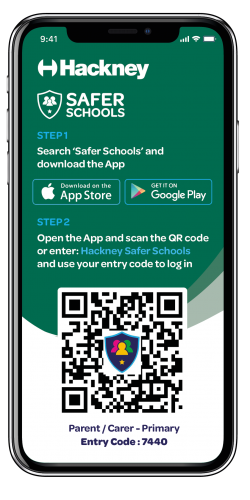
Hackney Safer Schools App
The Hackney Safer Schools App, which offers vital safeguarding information and advice, has been launched by Hackney Council. The Hackney Safer Schools App provides support on topics including online bullying, mental health, sexting, media literacy, gaming and sexual exploitation online. It complements information already provided by schools to children and parents. The app is being released by the Council to further help parents and carers educate, empower and protect their children in the online world. With children spending more time online, the Hackney Safer Schools App is an essential tool for everyone to learn more about avoiding online dangers and the actions needed to help make children safer.
The App is available from the Apple Store here
When you have downloaded the app either scan the QR code or enter: Hackney Safer Schools and the Entry Code: 7440 to log in.
Further information is available here.
Smart Rules
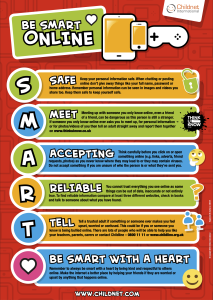
At Morningside we teach children to follow the SMART rules to be safe online. Please click on the poster to read the messages in full. Online safety is taught across the PSHE and Computing curriculum as well as part of every day conversations and special events such as Safer Internet Day, which we celebrate each February. Each class, from Years 3-6, has elected digital leaders who work with teachers and the pastoral team to promote online safety with their peers and younger children.
The best way to protect your children online is to be informed yourself and make conversations about being safe online part of your family life. Much like the importance we put on crossing the road safely and staying away from strangers, children need to be taught how to be safe using the internet. Remember that the internet is on a range of devices such a mobile phones, tablets, smart home devices, computers and games consoles.
It is important that children are aware of the impact of too much screen time on their own wellbeing. As well as teaching children to make safe choices online, it is important that their screen time is monitored and that they understand why time off screens is important. Smart devices are a big part of modern life – all adults who spend time with children should model appropriate use of devices, including the importance of not spending too much time looking at phones – especially during family meals and social times. Please kick here to find out more about healthy screen time limits.
Use the websites below to help you find the best ways to talk to your children about keeping safe online.
***Please remember that Social Media Sites (e.g. Facebook, You Tube, Twitter, Instagram, TikTok etc) have a minimum age requirement of 13+ in their terms and conditions. Also WhatsApp and other internet based messaging services can only be used by 16 year olds and over.***
- Child Exploitation and Online Protection (CEOP) Centre
- Childnet
- CEOP ThinkUKnow
- CEOP’s ThinkUknow parents section
- Digital Parenting Magazine from Vodafone
- Internet terms and Language: A Guide for Parents
- PEGIÂ games rating
- Safer Internet Centre
How to Deal with Concerns
If at any point you have any concerns about your child’s safety on line please report it to CEOP (a police led online crime and safety service).
CEOP always recommend the following;
- If you need urgent help, i.e, your child is in immediate danger such as meeting a stranger they have met online, then call 999.
- Don’t delete any emails, images or conversations related to this report
- Don’t contact the suspect yourself. Let us do the detective work
Most sites will have their own report buttons too or facility to block people and pages that cause you concern.
Parental Controls
Many of the large internet providers list details of how you can add parental controls and restrictions that you can put in place to restrict your child’s use of the internet in your home. You can also add restrictions on individual devices. Below are some links to relevant website which might assist you in this:
Websites
Firefox – Firefox has an add-on called ‘Fox Filter’ which can be applied.
Internet Explorer does have parental/family settings. Please follow instructions below to set parental controls:
To set controls:
- Open Internet Explorer
- Select “Tools†from the toolbar
- Select “Internet Optionsâ€
- Choose the “Content†tab
- Click “Enableâ€
- Adjust the slider to select the level you deem appropriate for your child
- Save changes